EvidentlySo homeBeta
Menu
Download
Support

Visual guide

Support menu Visual guide

Every step from download to your first PDF, one picture at a time. Pick your devices, then tap any picture to open it large and step through.

Show steps for

Download

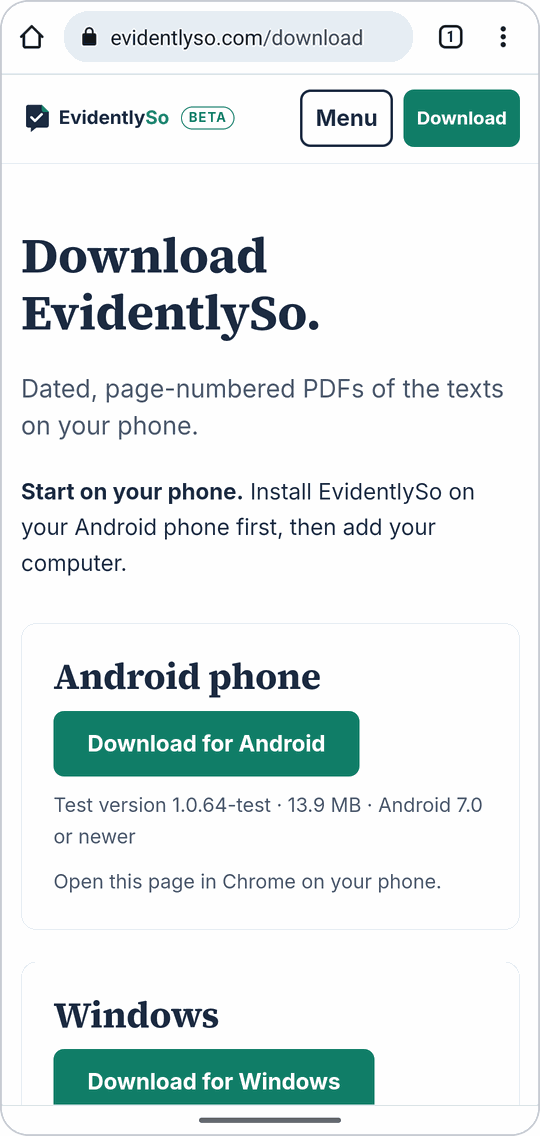
  1. The Download page on a phone, with Download for Android.
    Android phone On your phone, open evidentlyso.com/download in Chrome and tap Download for Android.
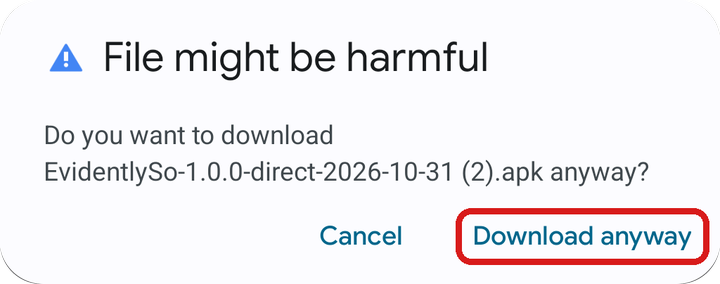
  2. Chrome says File might be harmful. Download anyway is outlined in red.
    Android phone Chrome warns about the file, because it isn’t from an app store. Tap Download anyway.
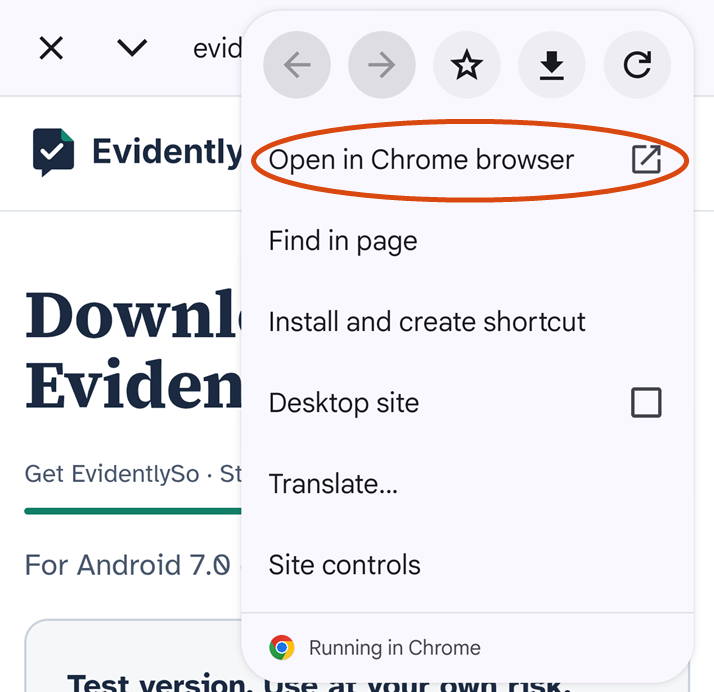
  3. The ⋮ menu open, with Open in Chrome browser circled.
    Android phone Opened the link from Gmail or a text? Tap ⋮, then Open in Chrome browser, and download again.
  4. Windows computer On your computer, open evidentlyso.com/download and click Download for Windows.

Install

  1. Chrome says the file is downloaded. Open is outlined in red.
    Android phone When the download finishes, tap Open.
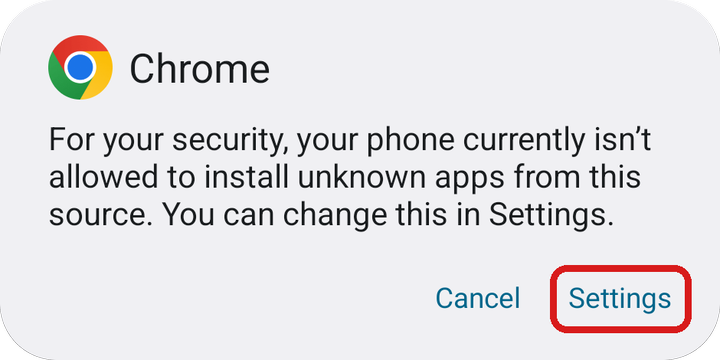
  2. Android says your phone isn’t allowed to install unknown apps from this source. Settings is outlined in red.
    Android phone If Android asks first, tap Settings.
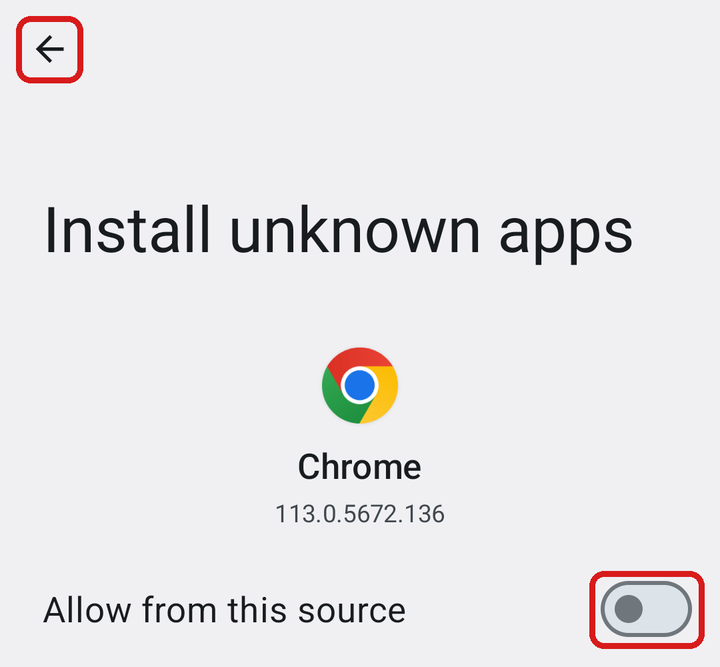
  3. The Install unknown apps screen for Chrome. The back arrow and the Allow from this source switch are outlined in red.
    Android phone Turn on Allow from this source, then tap the back arrow.
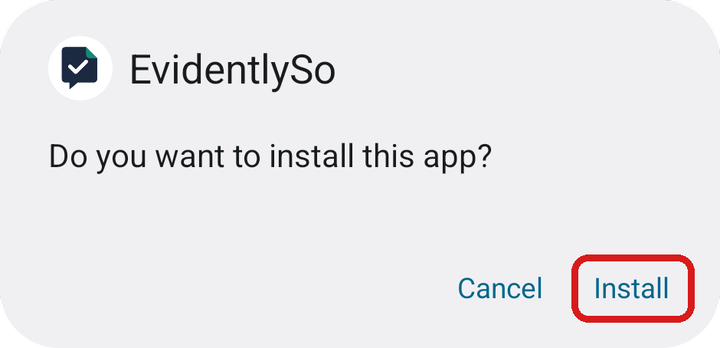
  4. Android asks whether to install EvidentlySo. Install is outlined in red.
    Android phone Tap Install.
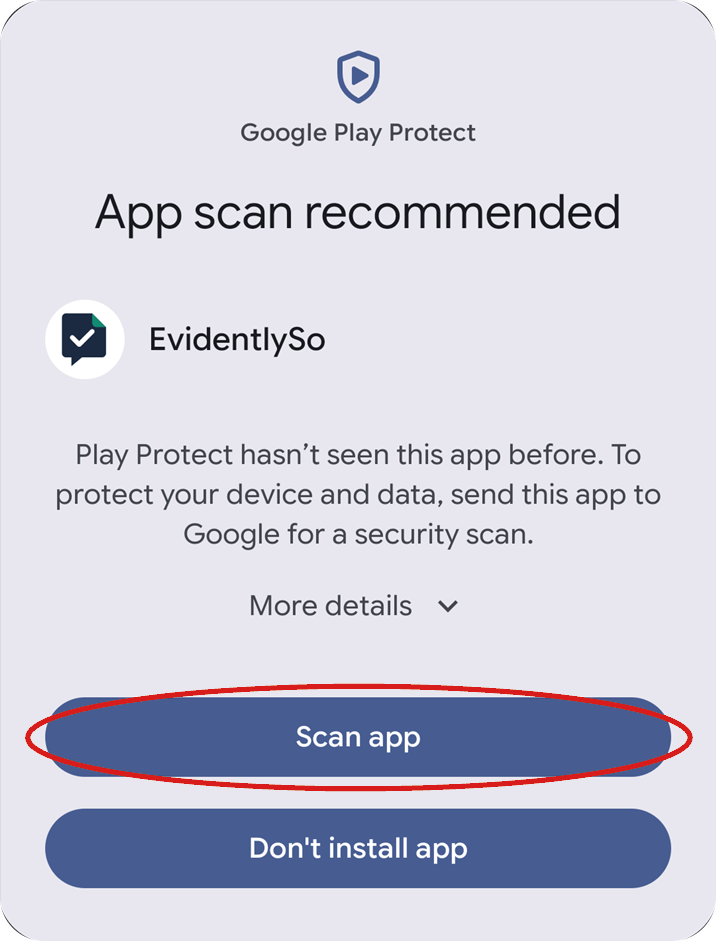
  5. Google Play Protect says App scan recommended for EvidentlySo. Scan app is outlined in red.
    Android phone Tap Scan app. Play Protect checks the app, then installs it.
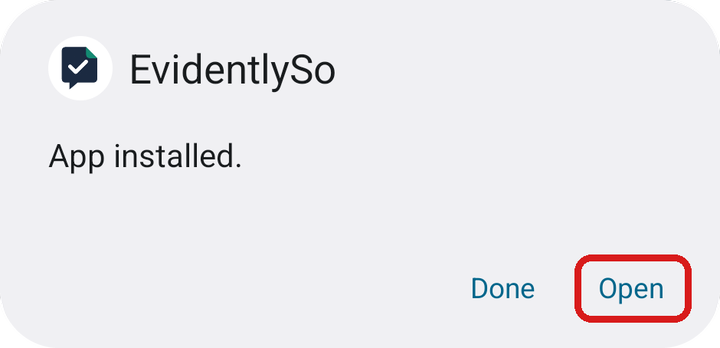
  6. Android says EvidentlySo: App installed. Open is outlined in red.
    Android phone When it says App installed, tap Open.
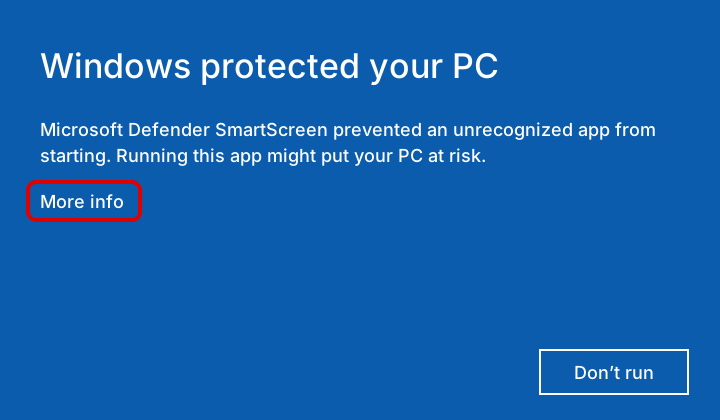
  7. A drawing of Windows’ blue warning, Windows protected your PC. More info is outlined in red.
    Windows computer Open the file you downloaded. If Windows says it protected your PC, click More info.
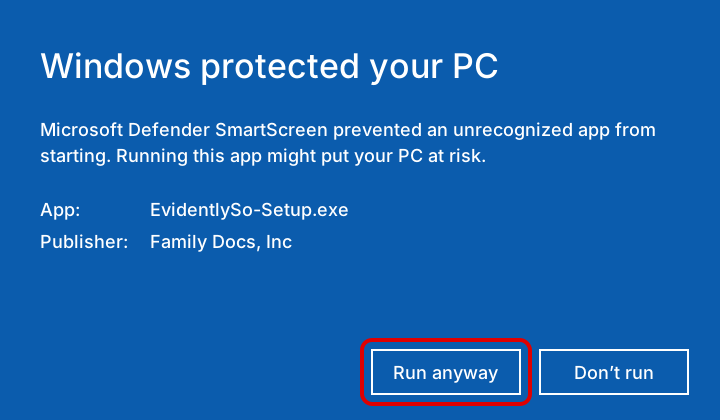
  8. A drawing of the same warning after More info, with Publisher Family Docs, Inc. Run anyway is outlined in red.
    Windows computer Check that the publisher is Family Docs, Inc, then click Run anyway.
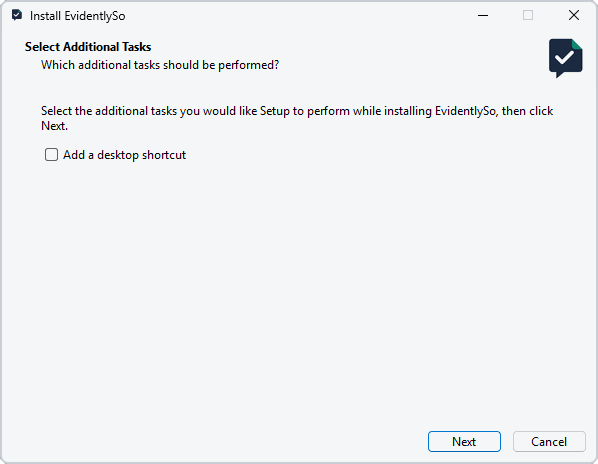
  9. The installer’s Select Additional Tasks page, with a Next button.
    Windows computer The installer opens. Click Next.
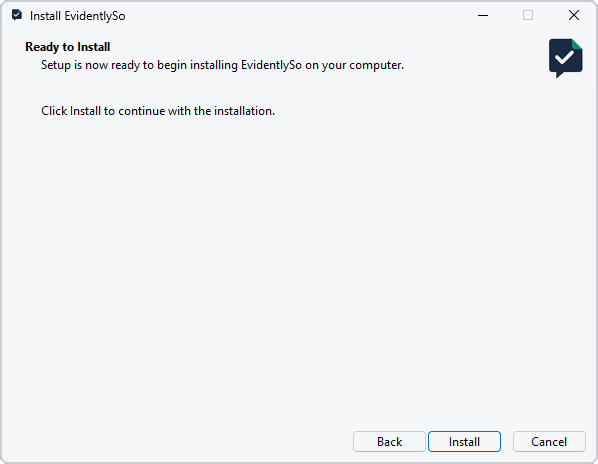
  10. The installer’s Ready to Install page, with an Install button.
    Windows computer Click Install.
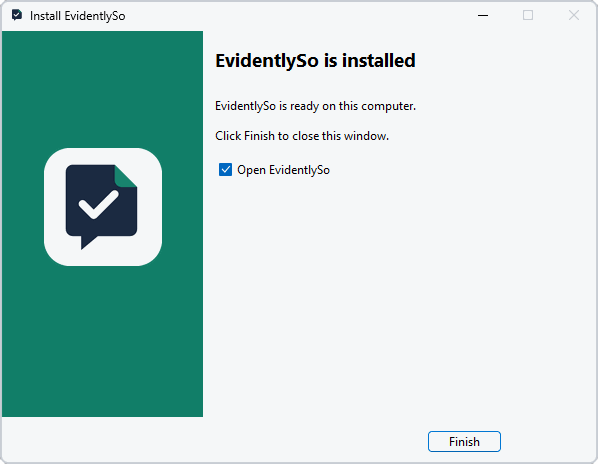
  11. The installer says EvidentlySo is installed, with Open EvidentlySo ticked and a Finish button.
    Windows computer When it says EvidentlySo is installed, click Finish. EvidentlySo opens.

Set up

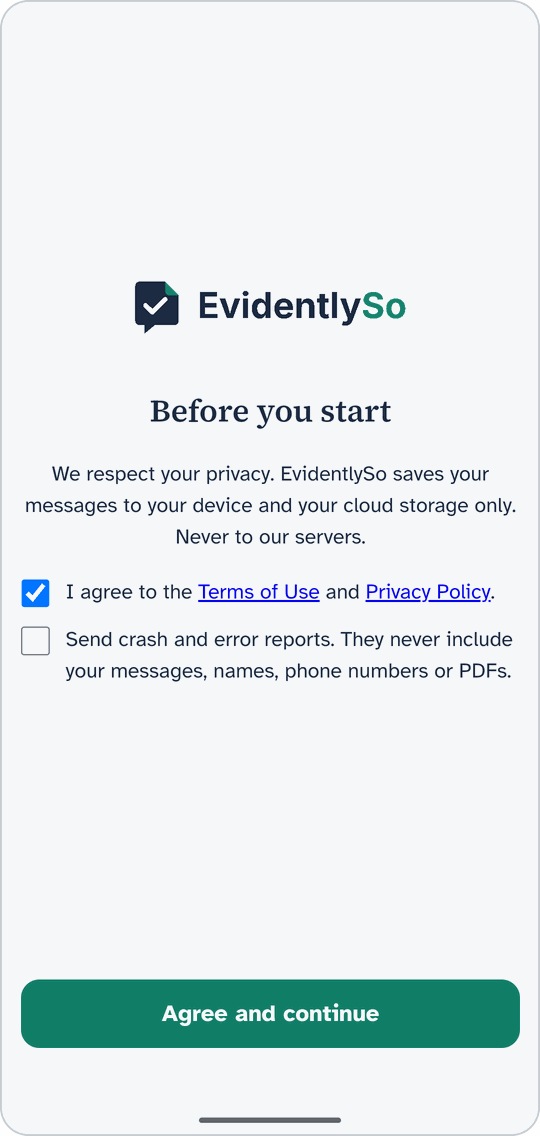
  1. The phone’s Before you start screen, with the Terms box ticked and Agree and continue.
    Android phone Tick the box to agree to the Terms of Use and Privacy Policy, and tap Agree and continue.
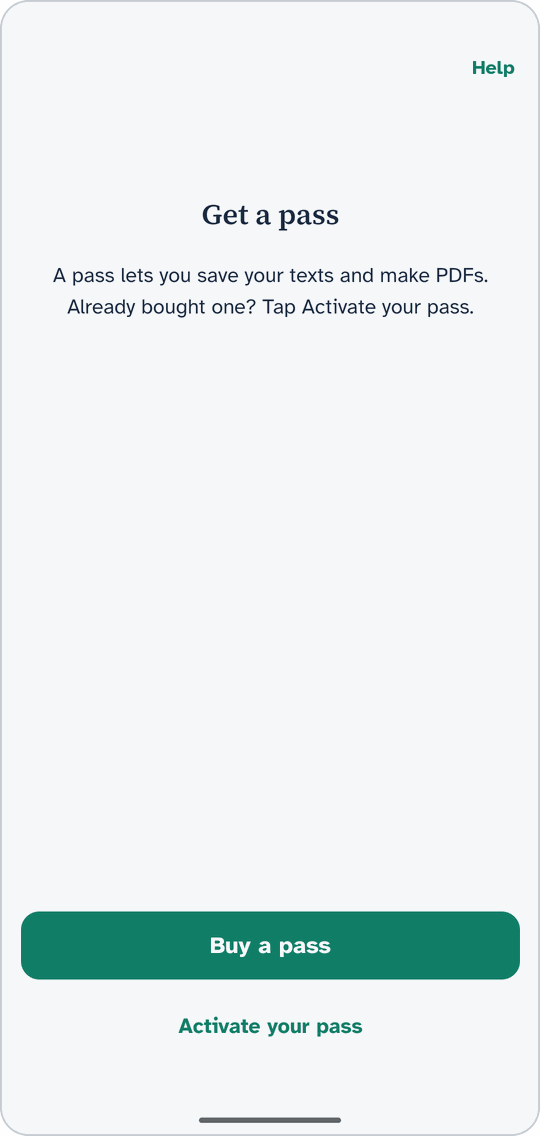
  2. The phone’s Get a pass screen, with Buy a pass and Activate your pass.
    Android phone Tap Activate your pass. No pass yet? Tap Buy a pass.
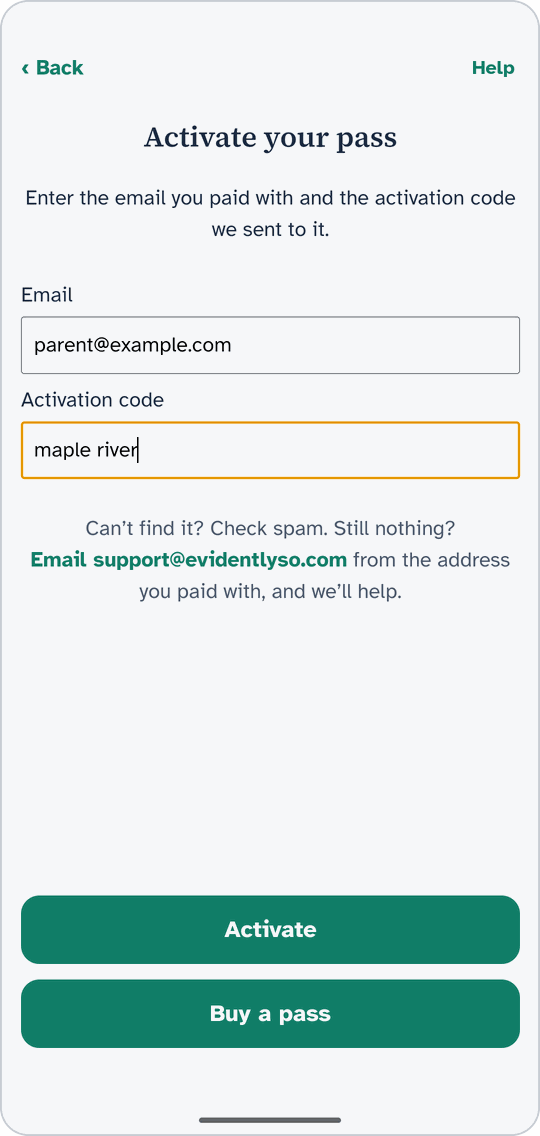
  3. The phone’s Activate your pass screen with a made-up email, the activation code maple river, and the Activate button.
    Android phone Type the email you paid with and the activation code from your email, and tap Activate.
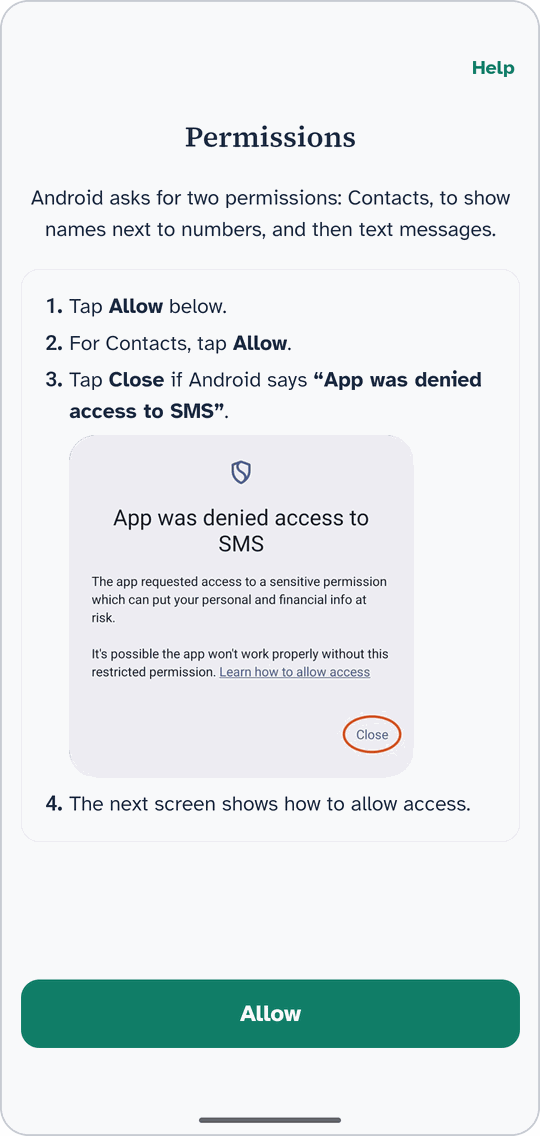
  4. The phone’s Permissions screen, with the Allow button.
    Android phone Tap Allow.
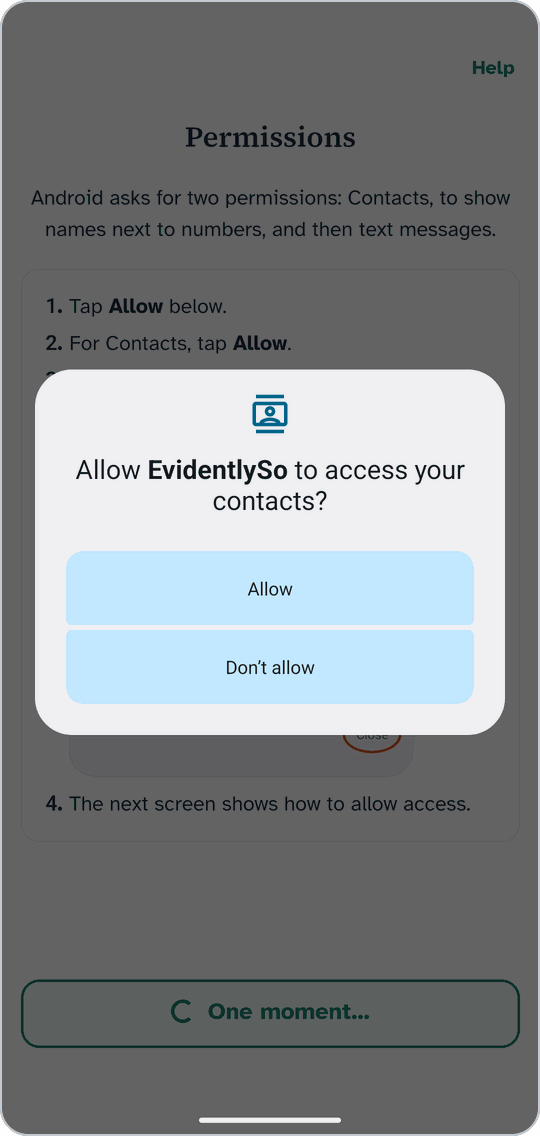
  5. Android asks: Allow EvidentlySo to access your contacts? Allow and Don’t allow.
    Android phone Android asks about your contacts, notifications and text messages. Tap Allow each time.
  6. Android phone Only if it asks Which phone is this?: pick the answer that fits this phone.
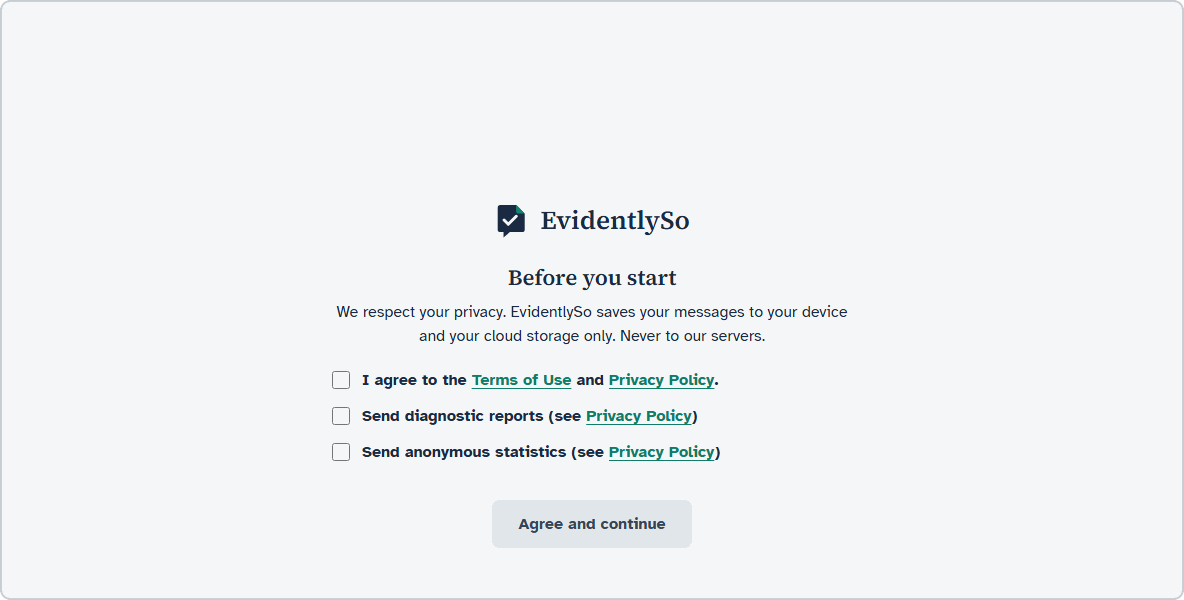
  7. The computer’s Before you start screen, with the Terms box and Agree and continue.
    Windows computer On your computer, tick the box to agree to the Terms of Use and Privacy Policy, and click Agree and continue.
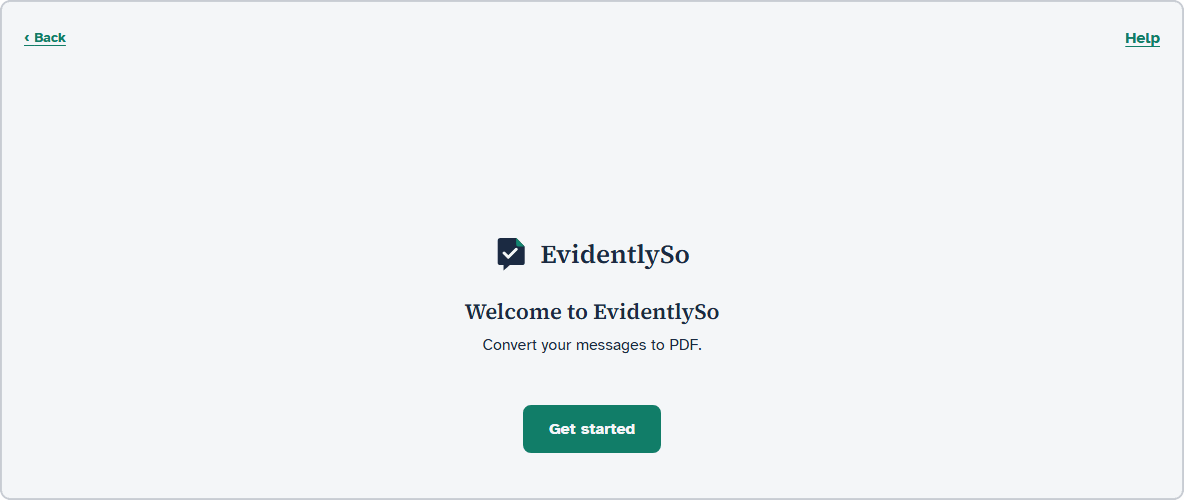
  8. The computer’s Welcome to EvidentlySo screen, with Get started.
    Windows computer Click Get started.
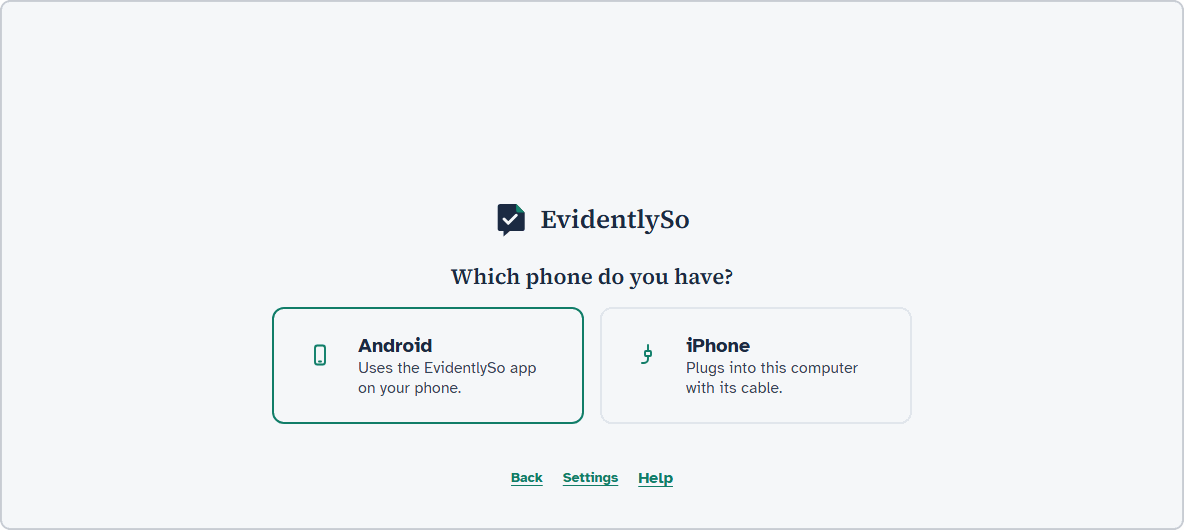
  9. The computer asks Which phone do you have? with Android and iPhone.
    Windows computer Click Android.
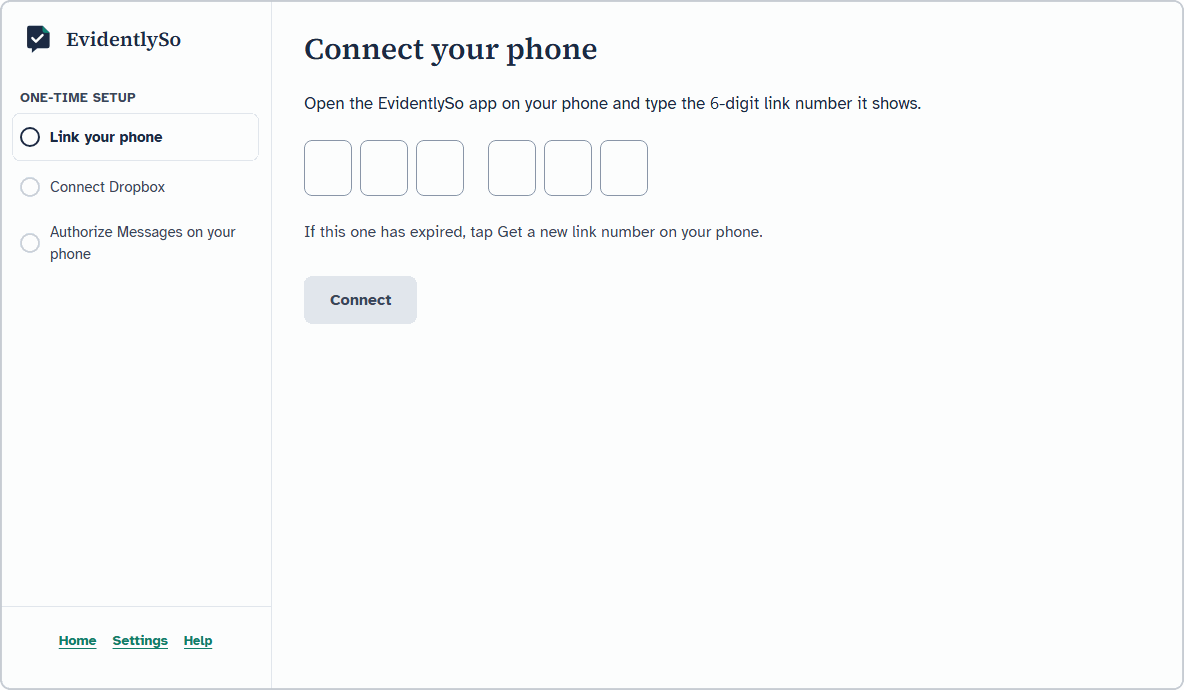
  10. The computer’s Connect your phone screen, with six boxes for the link number and a Connect button.
    Windows computer On your phone, tap Set up my computer, then Connect to computer. Type the 6-digit link number on your computer and click Connect. If both show the same 2-digit number, tap Link on your phone.
  11. Windows computer Click Connect Dropbox and sign in to the Dropbox account your phone uses.
  12. Windows computer Click Connect Google Messages, sign in with the Google account your phone uses, and tap the matching emoji on your phone.

Save conversations

  1. Android phone On your phone, open EvidentlySo and tap Save a snapshot.
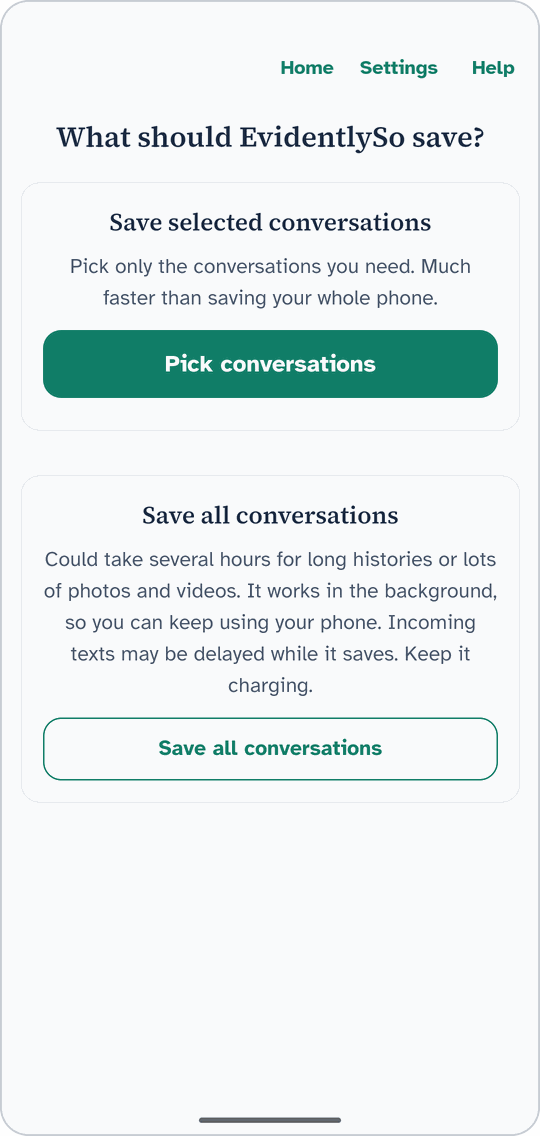
  2. The phone’s What should EvidentlySo save? screen, with Pick conversations and Save all conversations.
    Android phone Tap Pick conversations. To save everything, tap Save all conversations instead.
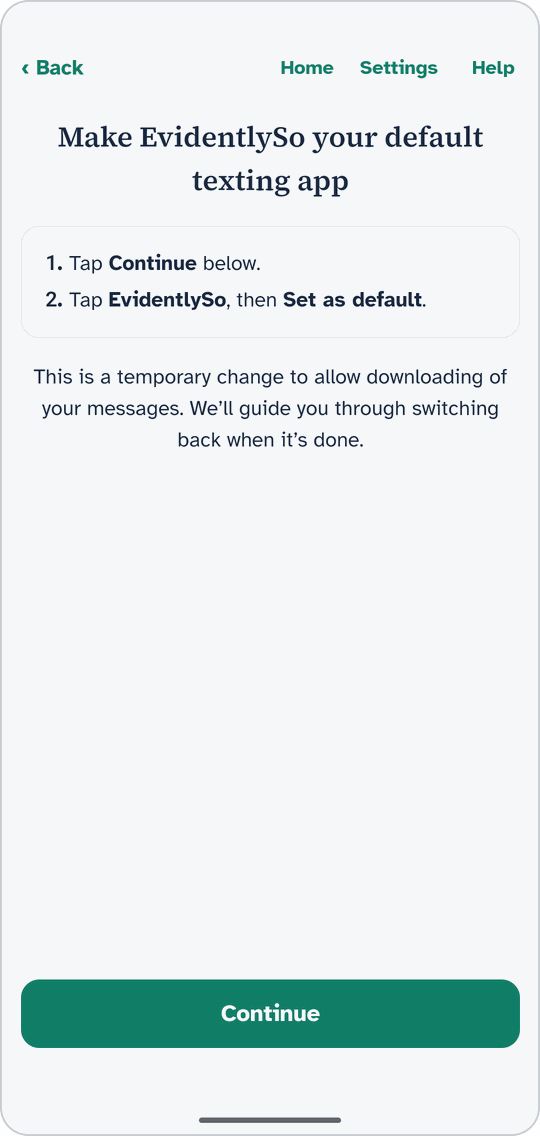
  3. The phone’s Make EvidentlySo your default texting app screen, with Continue.
    Android phone To make EvidentlySo your texting app for now, tap Continue.
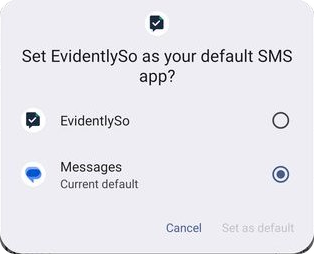
  4. Android’s box: Set EvidentlySo as your default SMS app? EvidentlySo and Set as default circled.
    Android phone Android asks. Tap EvidentlySo, then Set as default.
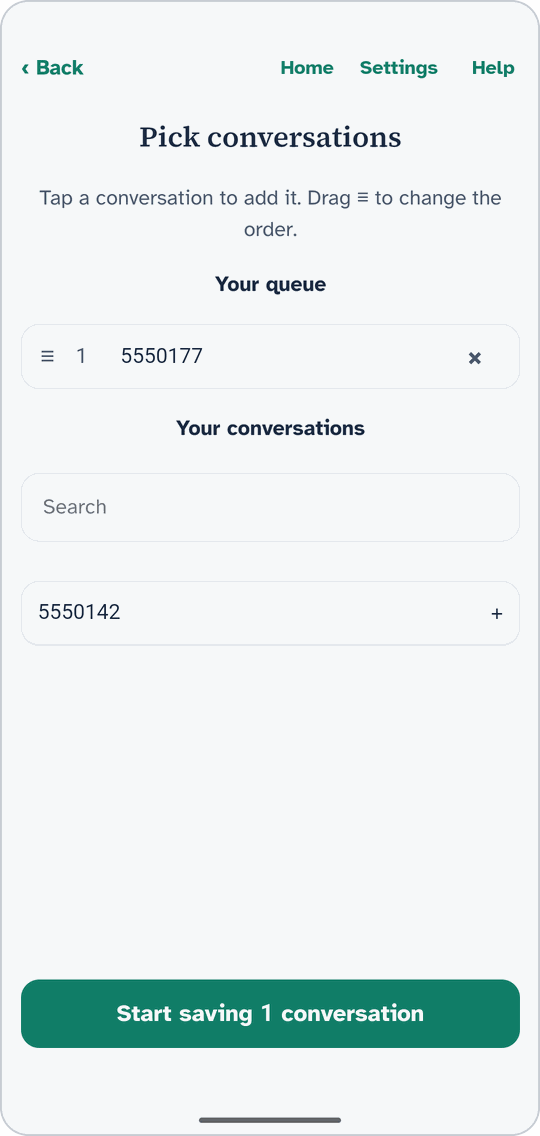
  5. The phone’s Pick conversations screen with one made-up number in the queue and Start saving 1 conversation.
    Android phone Tap each conversation you need, then tap Start saving.
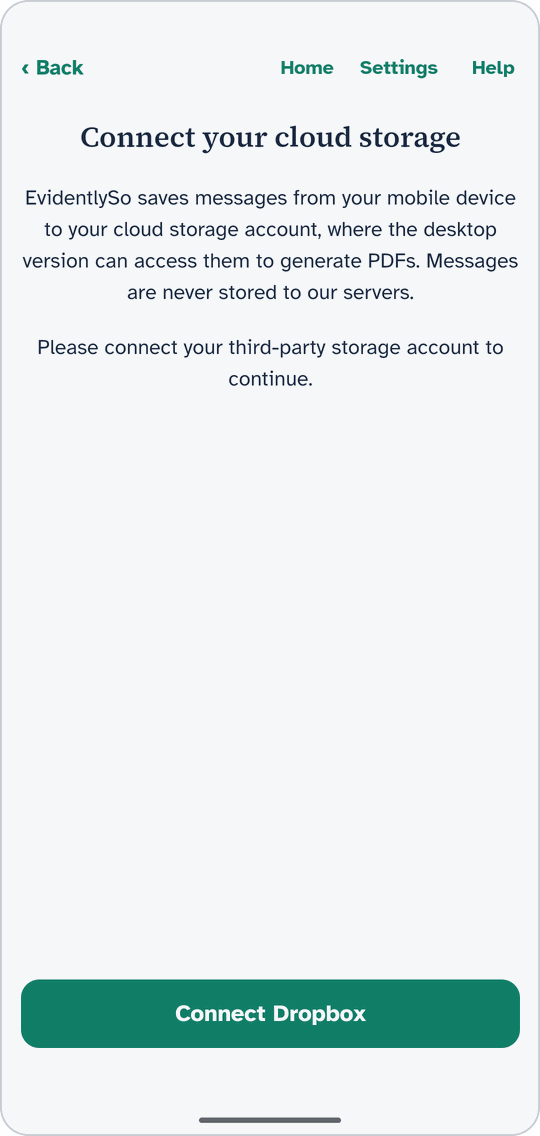
  6. The phone’s Connect your cloud storage screen, with Connect Dropbox.
    Android phone If it asks, tap Connect Dropbox and sign in to your Dropbox.
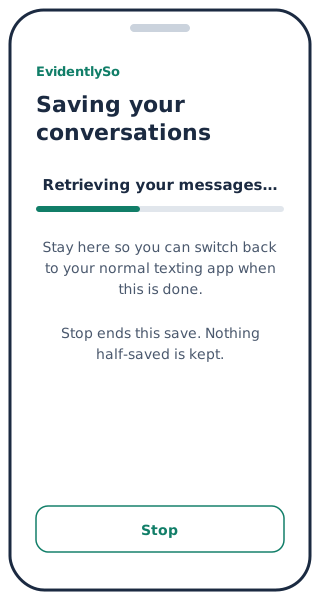
  7. The phone’s saving screen with its progress bar, the two lines about staying and Stop, and the Stop button.
    Android phone Stay on the saving screen until it’s done.
  8. Android phone When EvidentlySo asks, switch back to your usual texting app. When it says Conversations saved, you’re done.

Make a PDF

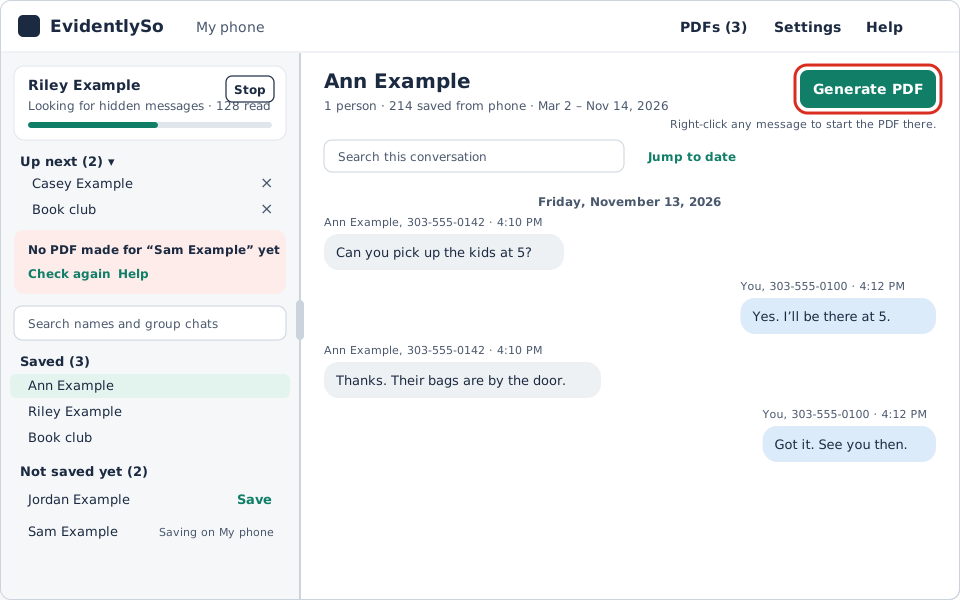
  1. EvidentlySo on a computer with Ann Example open, and Generate PDF at the top right outlined in red.
    Windows computer On your computer, click a conversation under Saved, then click Generate PDF at the top right.
  2. Windows computer The first time, type your name and number if it asks. Then click Generate PDF.
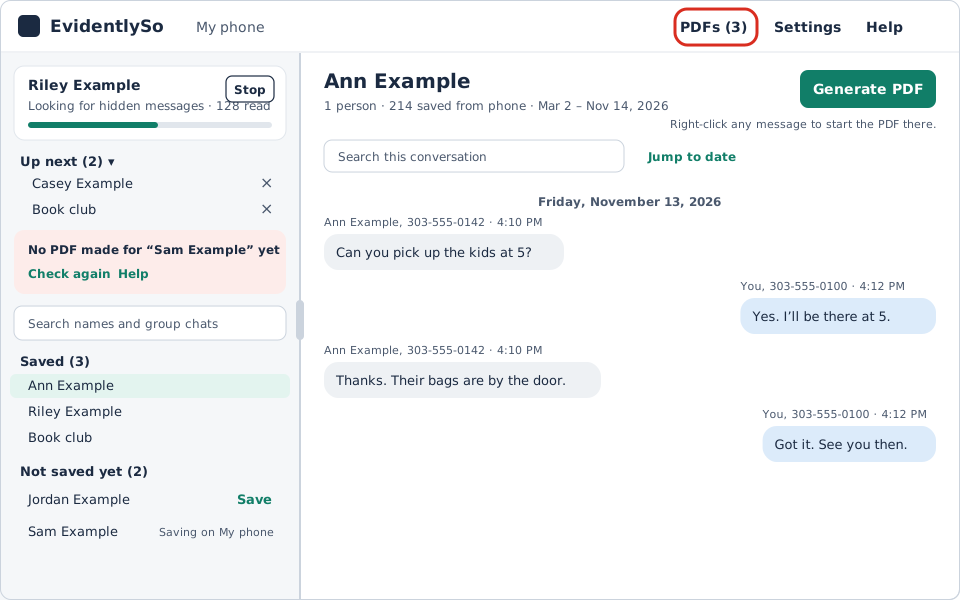
  3. EvidentlySo on a computer, with PDFs (3) in the top bar outlined in red.
    Windows computer Click PDFs in the top bar to open your PDFs.

Prefer written steps? Download, Install, Set up your phone, Set up your computer, Save conversations and Make a PDF.

Still stuck? Contact support.