
Make a PDF
Stuck? See the visual guide, with a picture of each step.
PDFs are made on your computer, from the conversations your phone saved.
Make a PDF
- Open EvidentlySo on your computer.
- Click a conversation under Saved.
- Click Generate PDF at the top right.
- The first time, type your name and number if it asks. They label the messages you sent.
- Click Generate PDF.
EvidentlySo first looks for hidden messages in Google Messages for web, then makes the PDF. When it’s ready, click Open PDF or Open folder.
Making more than one? Each waits its turn under Up next. The queue
Only part of a conversation
- Right-click the first message you want.
- Right-click the last message you want.
- Click Generate PDF of these messages.
Page 1 then shows the dates of the messages in the PDF.
A whole conversation suits evaluators and investigators who read it day by day. For an attorney who wants one focused exchange, choose just the messages it covers.
Multi-Source Record
When EvidentlySo can also check the conversation in Google Messages for web, page 1 says Multi-Source Record.
When Google Messages can’t be checked
Sometimes a conversation can’t be checked in Google Messages for web. It may not be connected, it may not show that conversation, or it may still be loading. Your computer then shows a note, like “No PDF made for Ann Example yet”, at the top of the left side.
- Click Check again. This usually fixes it.
- If it asks which conversation it is, click Find it in Google Messages and click the one that matches.
- Still no luck? Click Make PDF from phone only.
You still get a PDF, made from your phone alone. Page 1 says: “This is a single source record generated from a mobile phone.” More to try
Find your PDFs
- Click PDFs in the top bar. The number beside it is how many you have.
- Beside a PDF, click Open PDF, Open folder, Go to Dropbox or Details.
Your PDFs are saved in your Dropbox, in Apps › EvidentlySo. Each PDF has its own folder, with an Attachments folder for its photos, videos and files. Send the whole folder to your attorney.
Anyone can check that a PDF hasn’t changed at EvidentlySo.com/Verify. Keeping your PDF verifiable
The computer screen at a glance
Here’s what you see in EvidentlySo on your computer. The numbers match the picture.
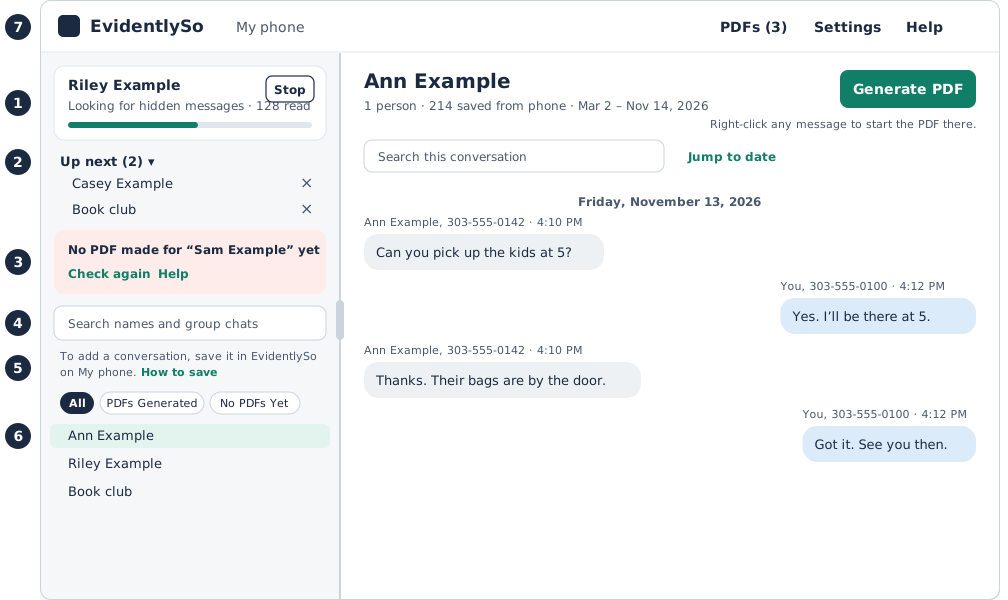
The left side, from the top
- What it’s working on now. The conversation’s name, a count, a bar, and Stop.
- Up next. What’s waiting its turn, with how many. Click Up next to open or close the list. Click × on a row to take it out. Nothing is deleted.
- A note, when something needs you. For example, “No PDF made for Sam Example yet”, with Check again and Help. What to do
- Search. Type part of a name, or the last 4 digits of a number.
- How to add a conversation. One line under the search: “To add a conversation, save it in EvidentlySo on” your phone. Click How to save for the steps. Save from your phone
- Your saved conversations. The ones your phone saved to your cloud storage, ready for a PDF. PDFs Generated and No PDFs Yet narrow the list; All shows them all.
Want the left side wider or narrower? Drag its right edge. Double-click the edge to put it back.
The top bar
Item 7 in the picture.
- PDFs opens your PDFs. The number beside it is how many you have.
- Settings has your phone, Dropbox, Google Messages and your pass.
- Help lets you ask a question or report a problem.
A conversation
Click a conversation on the left to open it. The top line names the people in it. Under it: how many people, how many messages were saved from your phone, and the first and last day.
- Search this conversation finds words in it.
- Jump to date opens a calendar. Click a day to go to its first message.
- Generate PDF at the top right makes its PDF. Make a PDF
Still stuck? Contact support.