
Turn text access back on
EvidentlySo needs Android’s permission to read your text messages. If the app says text access is off, here’s how to turn it back on. EvidentlySo only reads your texts. It never sends, changes, or deletes them.
[REVIEW: wording for this page]
First, try the button in the app
In EvidentlySo, tap Turn on text access, then Allow. [APP: confirm before launch] If Android opens its own settings page instead, follow the steps below.
Turn it on in Android’s settings
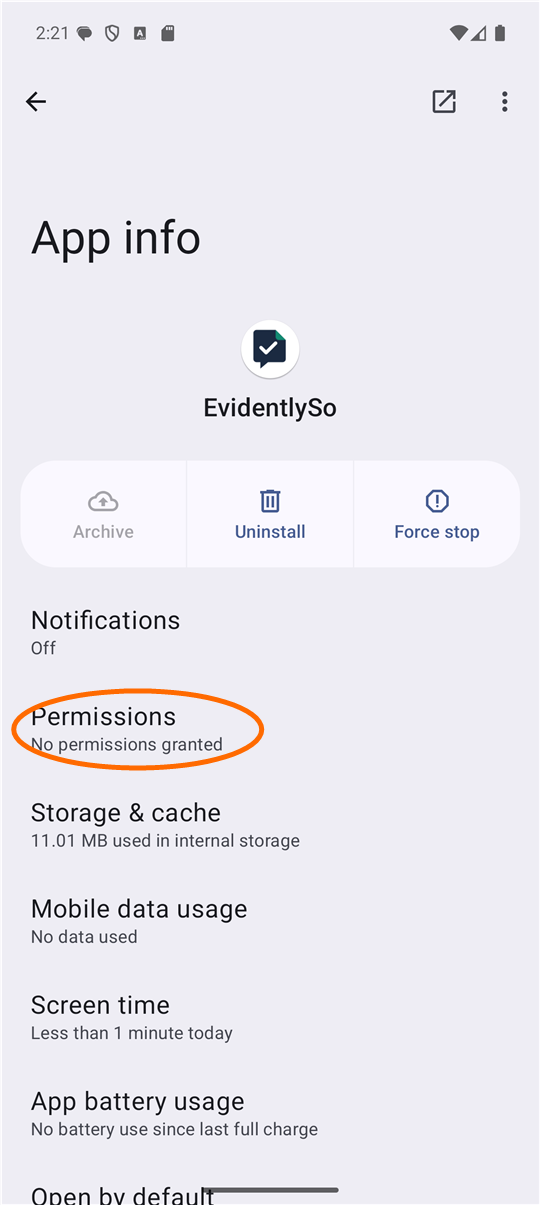
Open EvidentlySo’s App info page. The app’s button takes you there, or go to Settings › Apps › EvidentlySo (on some phones, Settings › Apps › See all apps › EvidentlySo). These steps are for Pixel and most Android phones, Android 13 to 16. Samsung Galaxy phones use the same names.
-
Tap Permissions
-
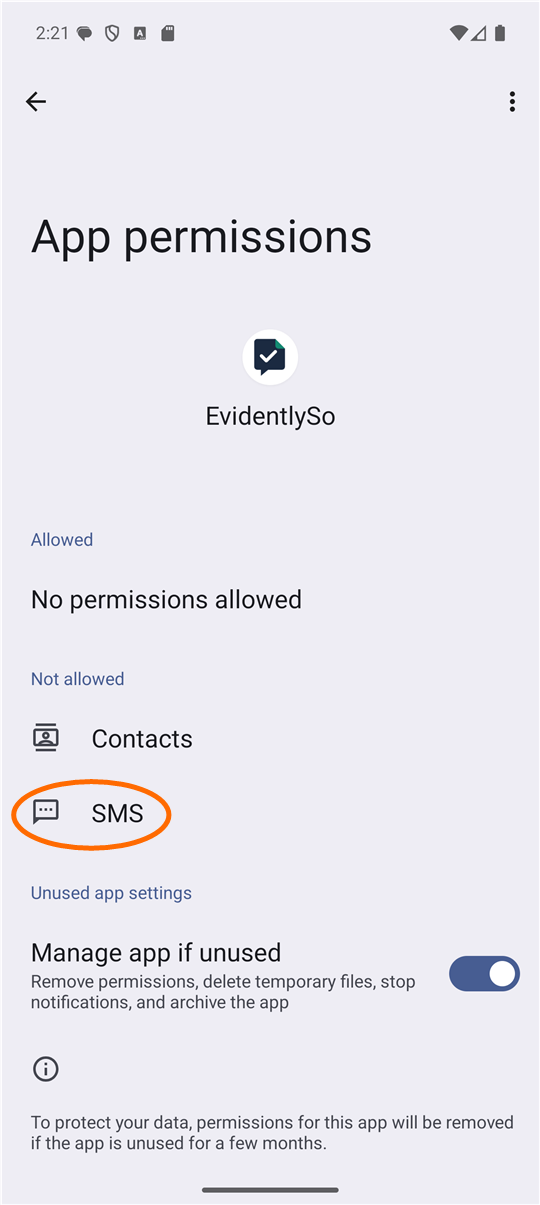
Tap SMS
-
Tap Allow
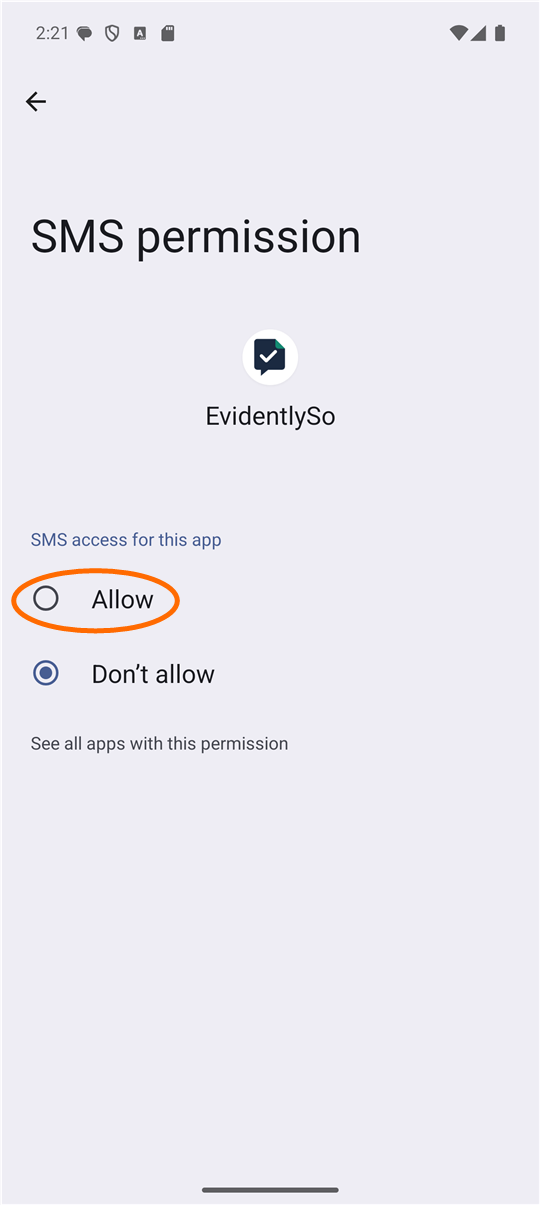
Then go back to EvidentlySo. It notices by itself.
If Android says “Restricted setting”
If you downloaded EvidentlySo from our website, Android 13 and newer may block step 3 the first time. It shows a box called Restricted setting, or Allow is grayed out. Then:
- Go back to EvidentlySo’s App info page.
- Tap ⋮ (top right), then Allow restricted settings.
- Confirm with your PIN, pattern, or fingerprint.
- Do steps 1 to 3 again: Permissions › SMS › Allow.
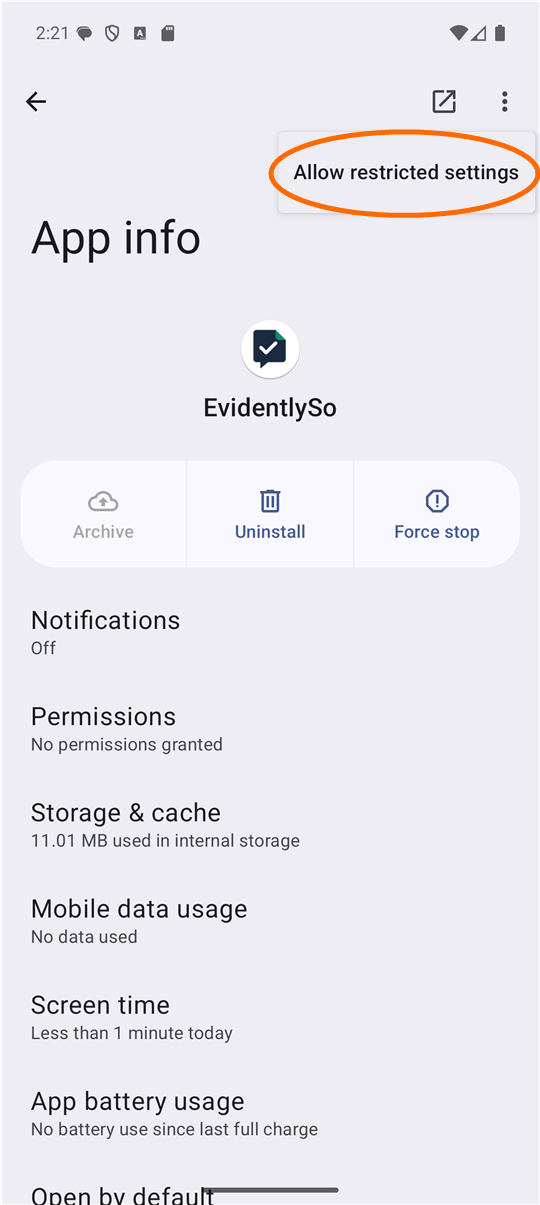
No ⋮ on the App info page? It usually appears only after Android has shown the Restricted setting box once. Try steps 1 to 3 first.
Good to know
- Android can turn permissions off by itself for apps you haven’t used for a few months. Turning text access back on works the same way.
- Contacts is a separate, optional permission. EvidentlySo uses it only to show names instead of phone numbers.
Still off? Contact support and tell us your phone model and what the screen says. Please don’t send screenshots of your messages.